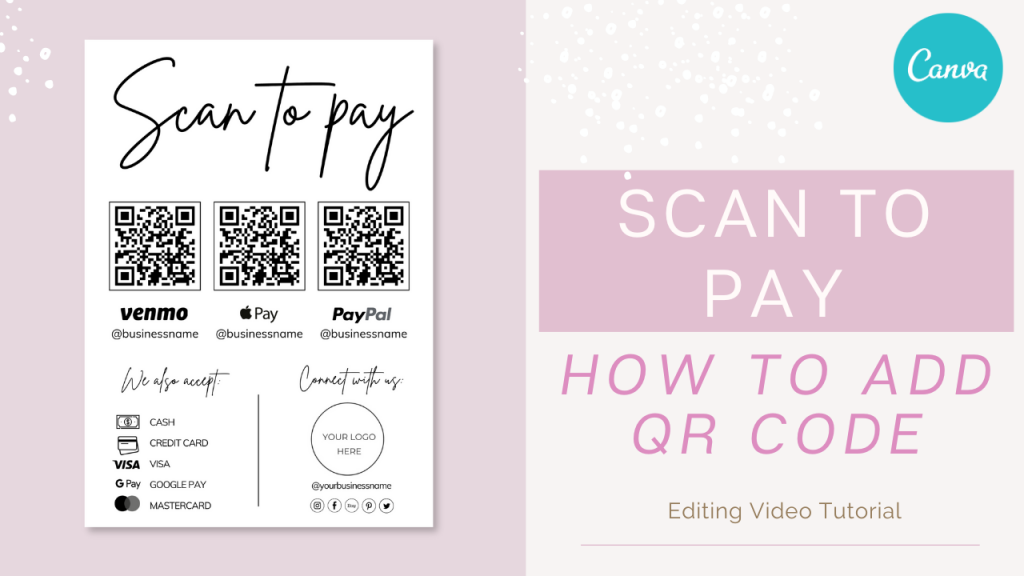
How to ad QR Code To Scan To Pay Sign

How to Add a QR Code to Your Scan to Pay Canva Template

Complete Step-by-Step QR Code Guide (Free Canva Account)

If you’ve just downloaded your Scan to Pay Canva template — I’m so glad you’re here.

In this guide, I’ll walk you through exactly how to add your payment QR code, adjust it properly, and download it in the right format — whether you’re printing it for your shop, market stand, salon, or sharing it online.

Everything is explained step by step, so you can follow along confidently.

➡️ Here you can find the template from the video: SCAN TO PAY CANVA TEMPLATE
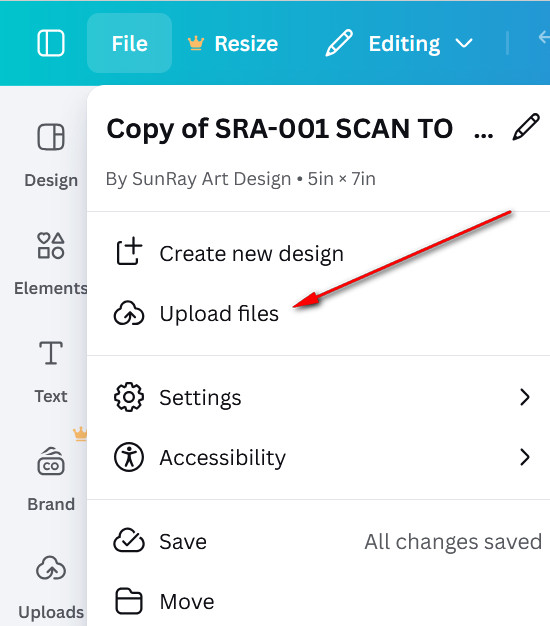
Table of Contents

Before You Begin

You’ll need:

  • A free Canva account (sign up at canva.com)

  • The PDF download from your order email (this contains your template link)
  • Your payment link ready (PayPal, Stripe, website, etc.)

  • About 5–10 minutes

💡 Good news: You don’t need Canva Pro — this template works perfectly with the free version.

Access Your Canva Template

  1. Open the PDF file from your order email.

  2. Click the Canva access link inside the PDF.

  3. Select View Template.

Canva will create your own copy in your dashboard.

Watch the Full Video Tutorial

For a complete visual guide, watch the full step-by-step tutorial below.

1. First Option. Add Your QR Code

Choose this if you already have a QR code from your payment app.

 How to upload it:

  1. Download the QR code from your payment app.

  2. In Canva, click Uploads in the left sidebar.

  3. Click Upload files.

  4. Select your QR image.

  5. Drag it into your template.

Use a high-quality image — blurry screenshots can cause scanning issues.

download qr code

2. Second Option. Create QR Code in Canva

This is my favorite method.

download qr code

 How to generate it:

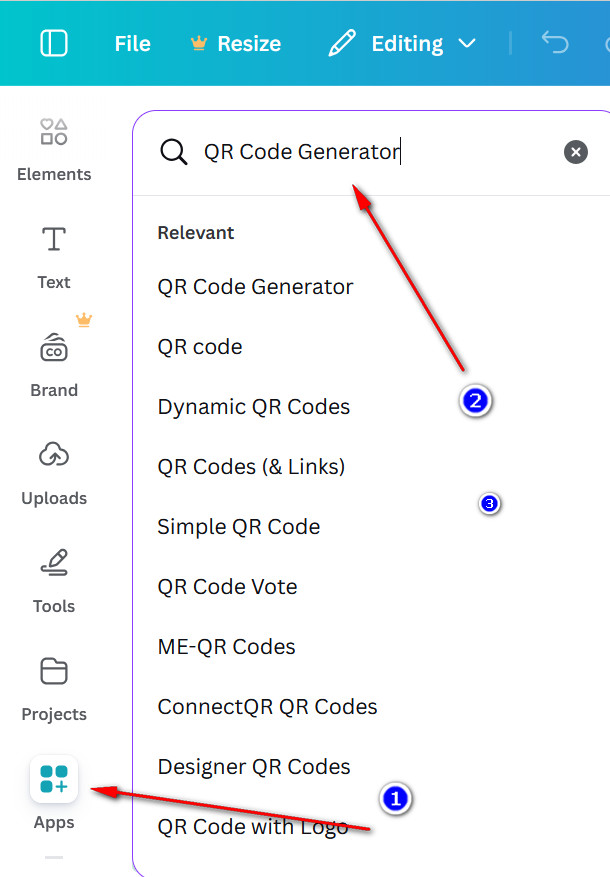
  1. Click Apps in the left sidebar.

  2. Search for QR Code Generator.

  3. Select the QR Code app.

  4. Paste your payment link.

  5. Click Generate Code.

Canva will instantly add a QR code to your design.

Why this method is great:

  • No downloads required

  • Easy to update later

  • Clean output

  • Works perfectly with free Canva

After generating, place it inside the designated area of your template.

3. Resize and Align

QR codes need space to work properly.

Follow these simple rules:

  • Keep it at least 1.2–1.5 inches wide for print.

  • Use dark QR on light background.

  • Leave white space around it.

  • Avoid textured or busy backgrounds.

A clean QR code always performs better than a decorative one.

4. Make It Yours

You can:

  • Edit your business name

  • Adjust payment instructions

  • Match brand colors

  • Change the font if needed.

  • and much more…

5. Download for Print or Digital Use

When you’re finished:

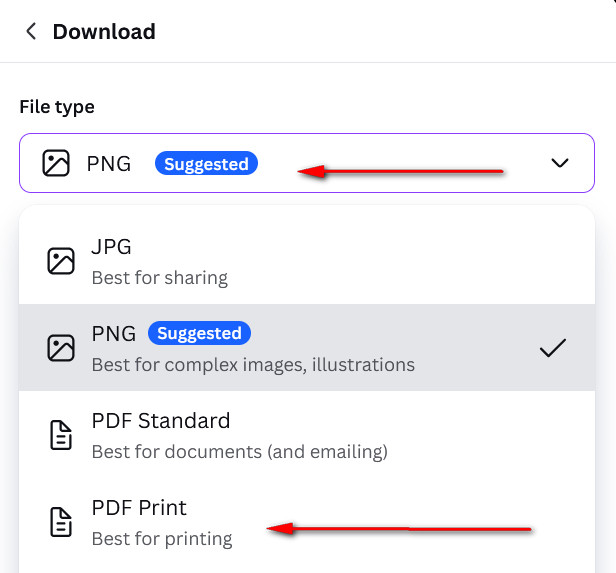
Click Share → Download

Choose:

PNG → for social media or websites
PDF Print → for posters, table signs, flyers

If you’re printing for markets or events, always choose PDF Print for best quality.

6. Test Your QR Code

Before printing or sharing:

  • Open your phone camera

  • Scan the QR code

  • Make sure it opens the correct payment page

If something doesn’t work, fix it now — not after printing 50 copies.

7. You’re All Set!

Your Scan to Pay display is ready to go.

Now you can confidently share it with customers, clients, or guests — whether you’re at a market, salon, pop-up, or event.

Thank you for choosing my template — I’m so happy to be part of your business journey.

Explore more editable Canva templates here: 👉 TEMPLATE SHOP

Frequently Asked Questions

No. This template works perfectly with a free Canva account.

Yes. Simply generate a new QR code and replace the old one.

You can generate separate QR codes and place them side by side.

Search

Popular right now

Recent reviews